
The JU role has permission to create the project pages for existing project IDs and automatically import their data into the Knowledge Hub platform. The project page create process is quite simple and requires only a valid project ID number.
To create a project page, select from the administrator menu: Content > Add content > Project to open the create project form. Type the Project ID number and the project title and click “Save”. Then we need to reopen the project’s form edit form and request an update of the project’s data.
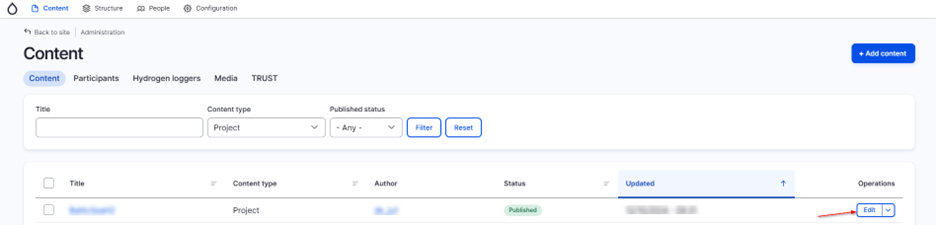
To update the project’s data, first find the newly created project page from the administrator menu: Content and click on the project’s row Edit action to open the project’s edit form as show bellow.
Then, scroll down the form to find the “Force Update” checkbox.

Check the “Force Update” option to manually fetch and update the project’s data from the data layer API and again click the form “Save” button. When the update process completes, all project data from external sources will be filled and styled as “Read-only” fields.