
The data collected at the Descriptive and Operational research object instances grids require validation from the Project Officer user. The following validation workflow steps apply to the Descriptive and Operational grids and need to be completed for both separately. The validation workflow involves the Beneficiary member who submits data and the Project Officer user who validates them.
Status description and validation steps
The validation workflow steps are the following:
| Status | Description |
|---|---|
| New | The instance is created, and no data have been added yet. |
| In Progress | The data collection is in progress by the Beneficiary user. |
| Submitted | The data have been submitted for validation. |
| Checking | The data validation is checked by the Project officer. |
| Done | The data validation workflow is completed and approved. |
The validation workflow facilitates the data collection validation and informs the participants about the validation progress and any changes/corrections required to finalize the data collection reporting. A quick description of validation steps is the following:
- The Beneficiary/Data provider user is filling in the Descriptive and Operational reporting parameter values and submits the results with the ‘Submit’ action.
- The Project Officer user is turning the report into Checking status, using the ‘Checking’ action, to review the submitted values.
- At the Checking status the Project Officers needs to mark which values are approved or rejected and set the respective value at the grid parameter column ‘Parameter Status’ to Done or Rejected.
- If there are rejected values the Project Officer needs to reopen the report for the Beneficiary/Data provider to make the required changes. In this case the Beneficiary/Data Provider needs to submit the report again, after changing the rejected values, and the Project Officer to check again the newly submitted values.
- The Project Officer is setting the report to status Done with the ‘Validate’ action when all reported Parameter Status have status ‘Done’.
The Grid columns for validation
The validation workflow is executed at each research object instance pages using the Descriptive and Operational grids. The Descriptive and Operational validation is separately. The following editable grid columns are used for the data collection and validation workflow.
| Column | Edit by Beneficiary/Data Provider | Edit by Project Officer | Description |
|---|---|---|---|
| Value | ✓ | ✓ | Is used to store the parameter value |
| Corrected value | ✓ | Is used to store the corrected parameter value, which is set only if the original value is not filled by the data provider. | |
| Parameter Status | ✓ | Is used to store the validation of the individual parameter value. | |
| Visibility | ✓ | ✓ | It is used to set the reporting visibility of the parameter. |
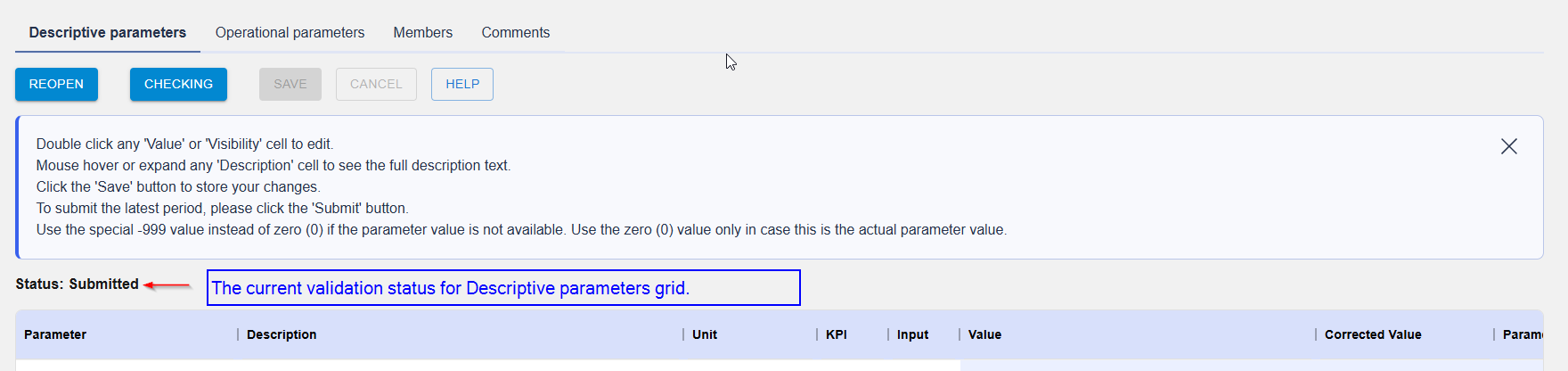
The current validation status is shown at each data collection grid.
For the Descriptive parameters grid:
For the Operations parameters grid
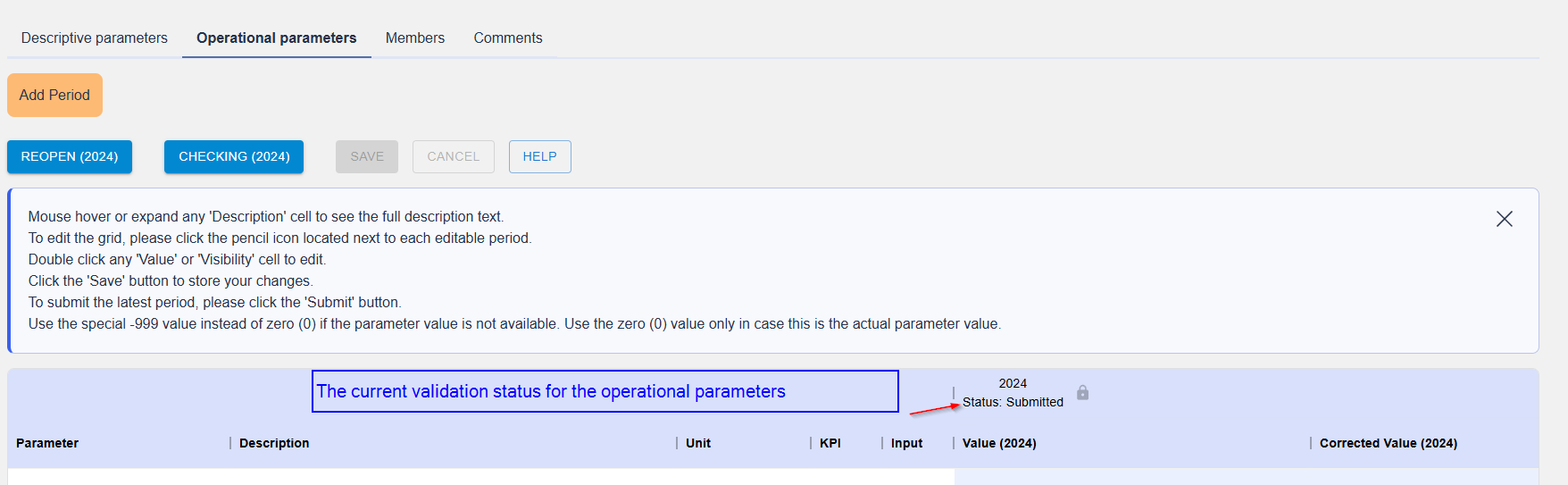
For each status transition there are transition actions to switch between them. The transition actions are the following and are available as action buttons to each data grid depending on the current validation status and current user permissions.
| Action label | Transition to status |
|---|---|
| Submit | Submitted |
| Checking | Checking |
| Reopen | In Progress |
| Validate | Done |
The transition action buttons can be found on top of each parameters grid and are changing based on the current validation status and the current user role. For example, these are the available validation transition actions for the Project Officer for the current ‘Checking’ status.

The full list of available transition actions is listed bellow for each user role and current validation status.
| Status | Transition action | New Status | Beneficiary | Project Officer | JU |
|---|---|---|---|---|---|
| New | Submit | Submitted | ✓ | ✓ | ✓ |
| In Progress | Submit | Submitted | ✓ | ✓ | ✓ |
| Submitted | Reopen | In Progress | ✓ | ✓ | ✓ |
| Submitted | Checking | Checking | ✓ | ✓ | |
| Checking | Done | Done | ✓ | ✓ | |
| Done | Reopen | In Progress | ✓ | ✓ |